


2026年10月20日、AWS は Amazon ECS Gateway を発表しました。ECS サービスの入口となるネットワーク(Ingress)を、フルマネージドで用意してくれる新機能です。
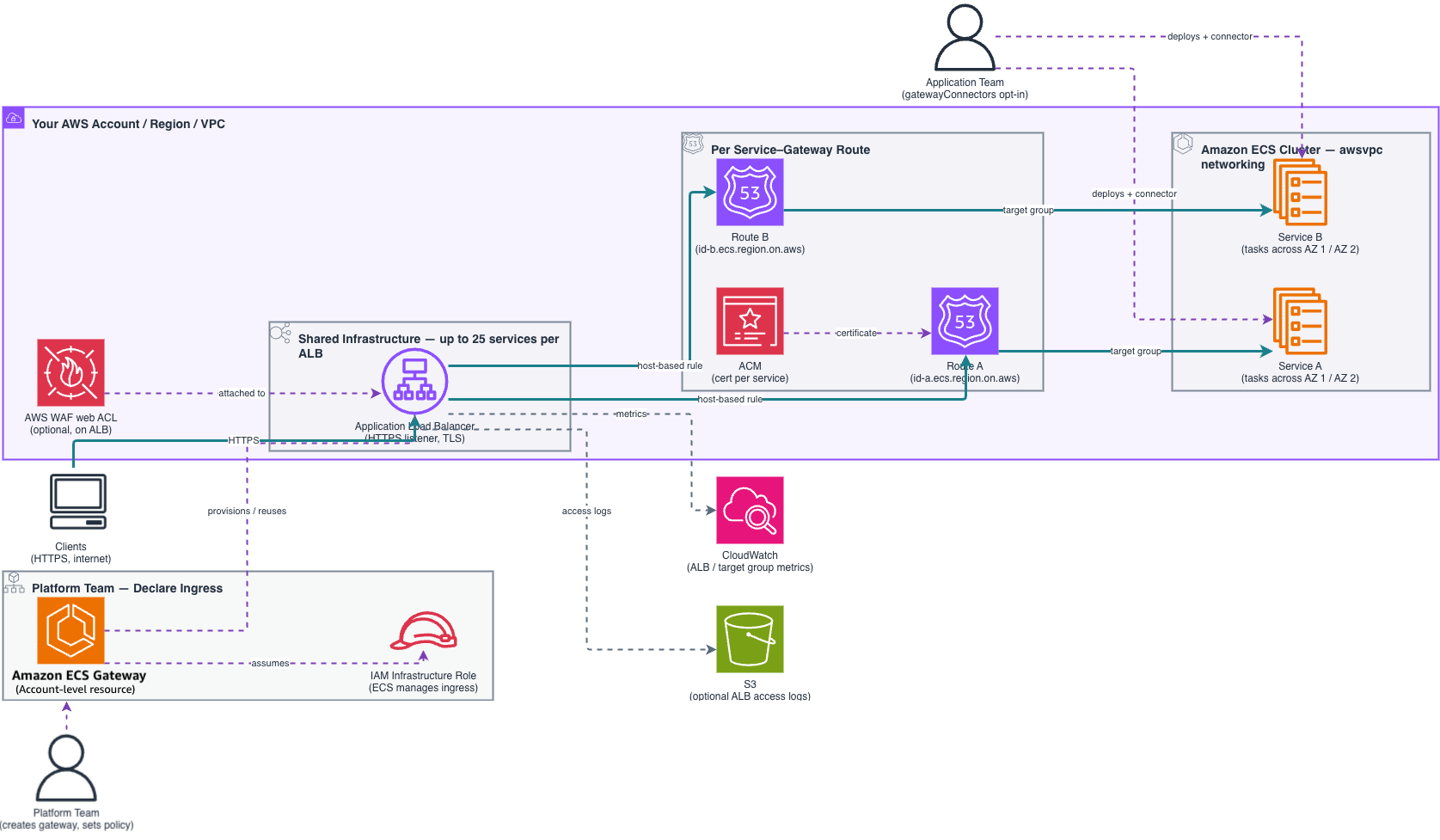
ECS でサービスを外部に公開するには、これまでサービスごとに ALB、リスナールール、ターゲットグループ、証明書、セキュリティグループを用意する必要がありました。サービス単位の設定はサービスの増加に伴い設定作業や管理の手間が増え、チームごとに設定がばらつきやすいという課題を抱えていました。
ECS Gateway
ECS Gateway はアカウント単位のリソースで、作業を2つの役割に分けます。
プラットフォームチーム
Gateway を作り、組織共通のルールを決めます。決めるのは、サブネット、セキュリティグループ、TLS 証明書、リスナー設定、AWS WAF の Web ACL などです。そのうえで Gateway をクラスターに関連付けます。
アプリケーションチーム
サービスの作成時か更新時に gateway connector を追加するだけです。必要な ALB のルーティング、ターゲットグループ、ACM 証明書、セキュリティグループは ECS が自動で作ります。
- ALB の共有と自動スケール:ホスト名でルーティングし、1台の ALB を最大25サービスで共有します。足りなくなれば ALB を自動で追加し、不要になれば削除します。台数の上限は
maxAlbCountで決められます(デフォルトの上限は10)。 - セキュリティを最初から組み込み:WAF は Gateway 単位でまとめて適用します。各サービスには「ALB からの通信だけを受け付ける」セキュリティグループが自動で付きます。
- ライフサイクルを自動管理:デプロイのたびに Gateway との関連付けを見直します。サービスを削除するとルートや関連リソースも消え、使われなくなった ALB も片付きます。
- 既存サービスからも段階的に移行できる:
UpdateServiceで connector を追加すれば、検証のあいだは既存の経路と新しい経路を並行して動かせます。 - 監視:CloudWatch の ALB メトリクスを、サービス単位(TargetGroup)と ALB 単位(LoadBalancer)で確認できます。
注意点:
注意点
- 対応するのは
awsvpcネットワークモードのみです(EC2、Fargate、ECS Managed Instances)。
ECSのネットワークモード | 概要 | 主な特徴 |
|---|---|---|
awsvpc | タスクごとに専用の ENI(ネットワークインターフェース)と VPC 内の IP アドレスが付く | タスク単位でセキュリティグループを付けられる。Fargate ではこのモードしか使えない。今は推奨されるモード |
bridge | Docker の仮想ブリッジを使う(EC2 で | コンテナのポートをホストのポートに対応付けて公開する。動的ポートマッピングを使えば、1台のホストで同じアプリを複数動かせる |
host | コンテナがホスト(EC2)のネットワークをそのまま使う | 性能は最も高い。ただし同じポートを使うタスクは1台のホストに1つしか置けない |
none | 外部とのネットワーク接続なし | ネットワークを使わないバッチ処理などで使う |
- Gateway はサービスと同じ VPC に置き、サービスが使うアベイラビリティーゾーンをすべてカバーする必要があります。
- 名前、scheme、VPC、サブネット、IP アドレスタイプ、リスナーのプロトコルとポートは、作成後に変更できません。
maxAlbCountに達していて空きのある ALB がない場合、つまりALBをそれ以上起動できない場合デプロイは失敗します。
さっそくやってみる
0.AWS CLI のアップデート
sudo apt update && sudo apt install -y unzip curl
cd /tmp
curl "https://awscli.amazonaws.com/awscli-exe-linux-x86_64.zip" -o awscliv2.zip
unzip -o awscliv2.zip
sudo ./aws/install --update
cd ~
aws --version
aws ecs create-gateway help > /dev/null && echo "create-gateway OK"create-gateway OK と表示されればOKです。
作業用のもろもろの値を環境変数にセットしておきます。VPCはデフォルトを使っています。
export AWS_REGION=us-east-1   # 使うリージョンに変更
ACCOUNT_ID=$(aws sts get-caller-identity --query Account --output text)
VPC_ID=$(aws ec2 describe-vpcs --filters Name=isDefault,Values=true --query 'Vpcs[0].VpcId' --output text)
SUBNETS=$(aws ec2 describe-subnets --filters Name=vpc-id,Values=$VPC_ID Name=default-for-az,Values=true \
  --query 'Subnets[].SubnetId' --output json | tr -d ' \n')

echo "ACCOUNT_ID=$ACCOUNT_ID"
echo "VPC_ID=$VPC_ID"
echo "SUBNETS=$SUBNETS"
1. IAMロールの作成
ではECS Gateway が ALB などのリソースを代わりに作れるように、ECS が引き受ける IAM ロールを作ります。権限は AWS 管理ポリシー AmazonECSInfrastructureRoleForGatewayHostSharedALB をアタッチするだけで足ります。
aws iam create-role \
  --role-name ecsInfrastructureRoleForGateways \
  --assume-role-policy-document '{
    "Version": "2012-10-17",
    "Statement": [{
      "Effect": "Allow",
      "Principal": { "Service": "ecs.amazonaws.com" },
      "Action": "sts:AssumeRole"
    }]
  }'
aws iam attach-role-policy \
--role-name ecsInfrastructureRoleForGateways \
--policy-arn arn:aws:iam::aws:policy/AmazonECSInfrastructureRoleForGatewayHostSharedALB作成が行えたら以下のコマンドを実行しARNを環境変数に書き込んでおきます。
aws iam list-attached-role-policies --role-name ecsInfrastructureRoleForGateways ROLE_ARN=$(aws iam get-role --role-name ecsInfrastructureRoleForGateways --query Role.Arn --output text) echo "ROLE_ARN=$ROLE_ARN"2. ECS Gateway の作成
プラットフォームチームの役割にあたる作業です。インターネットに公開する(internet-facing)Gateway を作り、使うサブネット(=VPC と AZ)を決めます。
aws ecs create-gateway \
  --name my-gateway \
  --infrastructure-role-arn "$ROLE_ARN" \
  --configuration "{
    \"hostSharedAlb\": {
      \"scheme\": \"internet-facing\",
      \"networkConfiguration\": { \"subnets\": ${SUBNETS} }
    }
  }"
成功すると以下のような結果が返ります。
{
    "gatewayArn": "arn:aws:ecs:us-east-1:123456789012:gateway/my-gateway/xxxx",
    "name": "my-gateway",
    "status": "ACTIVE"
}
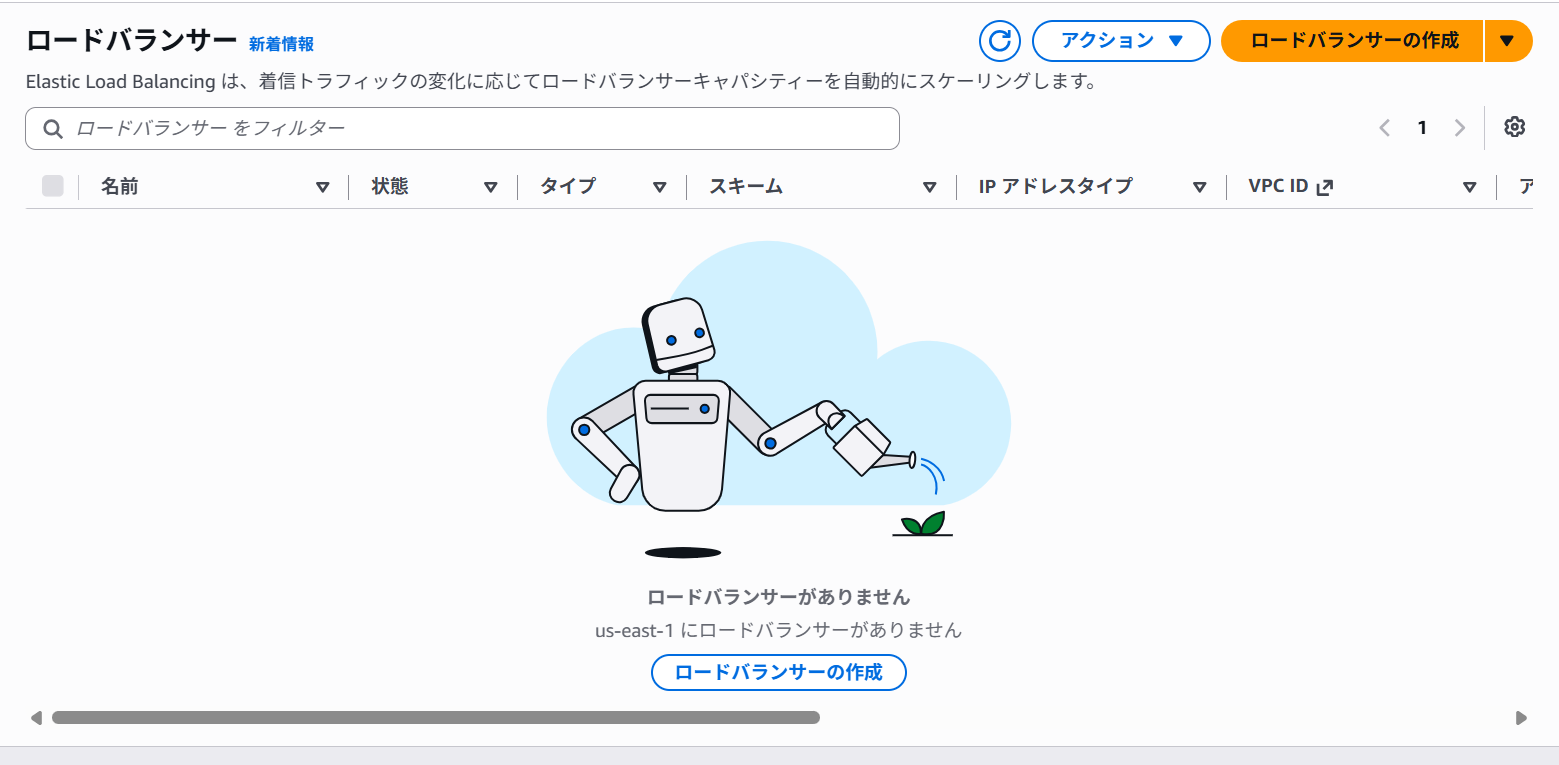
この時点では ALB はまだ作られていません。ALB は、最初のサービスが Gateway に接続したときに作られます。
3.ECSクラスターの作成とGatewayの関連付け
では先ほど作成したGatewayに新規作成したECSクラスターを関連付けます。
aws ecs create-cluster --cluster-name gw-demoaws ecs associate-gateway-with-cluster \
--gateway my-gateway \
--cluster gw-demo以下のコマンドで関連が成功しているかを確認します。
aws ecs list-gateway-cluster-associations --gateway my-gateway{
"gatewayClusterAssociations": [
{
"gatewayArn": "arn:aws:ecs:us-east-1:917561075114:gateway/my-gateway/05cf05d8-9b32-41af-b55c-e91cfbe1f958",
"clusterArn": "arn:aws:ecs:us-east-1:917561075114:cluster/gw-demo",
"status": "ACTIVE"
}
]
}GatewayとClusterが1つづつ出てきています。
ECS Gateway はオプトイン方式ですので、関連付けただけでは、トラフィックは何も流れません。既存のサービスにも影響はありません。サービス側が gateway connector を指定したときに、初めて Gateway を使います。
関連付けはn対nです。1つの Gateway に最大 10,000 クラスター、1つのクラスターに最大 5 つの Gateway を関連付けられます。たとえば「公開用(internet-facing)」と「社内用(internal)」の Gateway を同じクラスターに付けておき、サービスごとに使い分けることもできます。
4. タスク定義の登録
ここからはアプリケーションチームの作業です。
ECS のタスク定義とは、「どのコンテナイメージを、どれくらいの CPU・メモリで、どのポートやネットワーク設定で動かすか」をまとめた設計図(JSON)です。
Gateway につなぐためのタスク定義を用意します。条件は次の2つです。
networkModeがawsvpcであること- コンテナのポートに名前(
portMappings[].name)が付いていること。この名前を、後で gateway connector のportNameに指定します。
まずタスク定義ファイルを作成し登録します。
mkdir -p ~/gw-demo && cd ~/gw-demo

cat > taskdef.json <<'EOF'
{
  "family": "gw-demo-web",
  "networkMode": "awsvpc",
  "requiresCompatibilities": ["FARGATE"],
  "cpu": "256",
  "memory": "512",
  "containerDefinitions": [{
    "name": "web",
    "image": "public.ecr.aws/nginx/nginx:latest",
    "essential": true,
    "portMappings": [{
      "name": "web",
      "containerPort": 80,
      "protocol": "tcp",
      "appProtocol": "http"
    }]
  }]
}
EOF
aws ecs register-task-definition --cli-input-json file://taskdef.json \
--query 'taskDefinition.{family:family,revision:revision,networkMode:networkMode,ports:containerDefinitions[0].portMappings}'5. サービスの作成と Gatewayへの接続する
では先ほど登録したタスク定義をもとにサービスを作成してGatewayへ接続します。
gateway connector を付けてサービスを作ります。デプロイ時に、ECS が ALB、ターゲットグループ、証明書、セキュリティグループを自動で作ります。
まず、タスク用セキュリティグループを作成します。
TASK_SG=$(aws ec2 create-security-group \
  --group-name gw-demo-task-sg \
  --description "ECS Gateway demo task" \
  --vpc-id "$VPC_ID" \
  --query GroupId --output text)
echo "TASK_SG=$TASK_SG"
次にConnectorに関連付けられるサービスを作成します。
aws ecs create-service \
  --cluster gw-demo \
  --service-name web \
  --task-definition gw-demo-web \
  --desired-count 2 \
  --launch-type FARGATE \
  --network-configuration "{\"awsvpcConfiguration\":{\"subnets\":${SUBNETS},\"securityGroups\":[\"${TASK_SG}\"],\"assignPublicIp\":\"ENABLED\"}}" \
  --gateway-connectors '[{
    "portName": "web",
    "filters": { "accessTypes": ["PUBLIC"] },
    "healthCheck": { "healthCheckPath": "/" }
  }]' \
  --query 'service.{name:serviceName,status:status,desired:desiredCount}'
数分待って以下を実行してステータスを確認します。
aws ecs describe-services --cluster gw-demo --services web \
  --query 'services[0].{running:runningCount,pending:pendingCount,events:events[0:3].message}'
以下のようにrunningに数字が出力されれば起動しています。
{
    "running": 2,
    "pending": 0,
    "events": [
        "(service web) has reached a steady state.",
        "(service web) (deployment ecs-svc/8259906672662850666) deployment completed.",
        "(service web) registered 1 targets in (target-group arn:aws:elasticloadbalancing:us-east-1:917561075114:targetgroup/ecs-gateway-tg-1a57100fcea3c6a5d/c39e5793fc11a58b)"
    ]
}
5.動作確認
ではアクセスを行ってみます。まずはGatewayのURLを取得します。
DEPLOY_ARN=$(aws ecs list-service-deployments --cluster gw-demo --service web \
  --query 'serviceDeployments[0].serviceDeploymentArn' --output text)
REV_ARN=$(aws ecs describe-service-deployments --service-deployment-arns "$DEPLOY_ARN" \
  --query 'serviceDeployments[0].targetServiceRevision.arn' --output text)
echo $REV_ARN

aws ecs describe-service-revisions --service-revision-arns "$REV_ARN" \
  --query 'serviceRevisions[0].ecsManagedResources.gatewayConnections'

SERVICE_URL=$(aws ecs describe-service-revisions --service-revision-arns "$REV_ARN" \
  --query 'serviceRevisions[0].ecsManagedResources.gatewayConnections[0].serviceUrl' --output text)
echo "SERVICE_URL=$SERVICE_URL"
最後にcurlでアクセスを行います。・
curl -i "$SERVICE_URL"HTTP/2 200
date: Sat, 24 Oct 2026 08:12:08 GMT
content-type: text/html
content-length: 896
server: nginx/1.31.8
last-modified: Wed, 21 Oct 2026 14:24:51 GMT
etag: "6ad8cb33-380"
accept-ranges: bytes
<!DOCTYPE html>
<html>
<head>
<title>Welcome to nginx!</title>
<style>
html { color-scheme: light dark; }
body { width: 35em; margin: 0 auto;
font-family: Tahoma, Verdana, Arial, sans-serif; }
</style>
</head>
<body>
<h1>Welcome to nginx!</h1>
<p>If you see this page, nginx is successfully installed and working.
Further configuration is required for the web server, reverse proxy,
API gateway, load balancer, content cache, or other features.</p>
<p>For online documentation and support please refer to
<a href="https://nginx.org/">nginx.org</a>.<br/>
To engage with the community please visit
<a href="https://community.nginx.org/">community.nginx.org</a>.<br/>
For enterprise grade support, professional services, additional
security features and capabilities please refer to
<a href="https://f5.com/nginx">f5.com/nginx</a>.</p>
<p><em>Thank you for using nginx.</em></p>
</body>
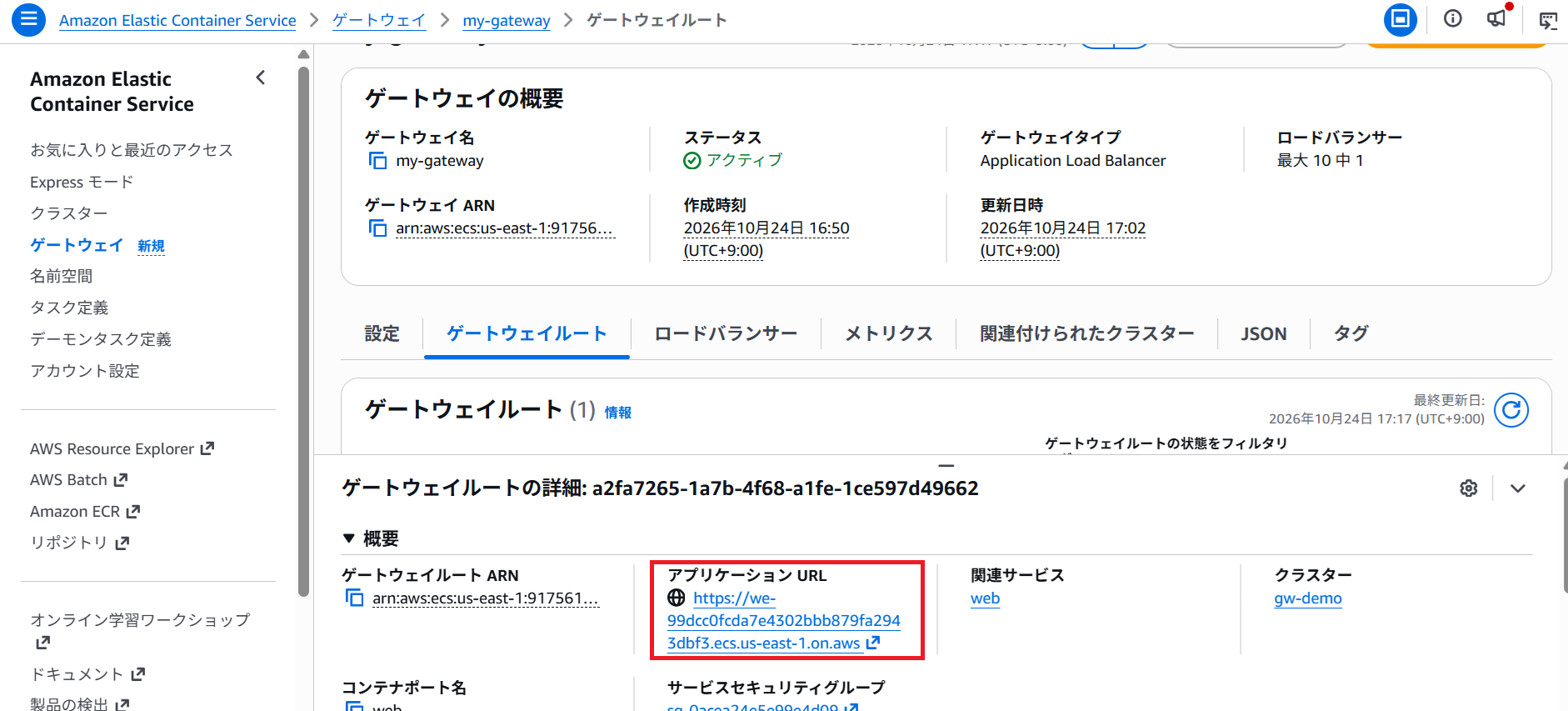
</html>ドメインの取得も、証明書の発行も、DNS の設定もしていないのに、HTTPS の URL がすぐに使えるようになっています。ID はランダムなので、サービスを作り直すと URL も変わります。独自ドメインで公開したい場合は、この URL を CNAME などで参照する構成を検討してください。
コンソールでもロードバランサーができていることが確認できます。
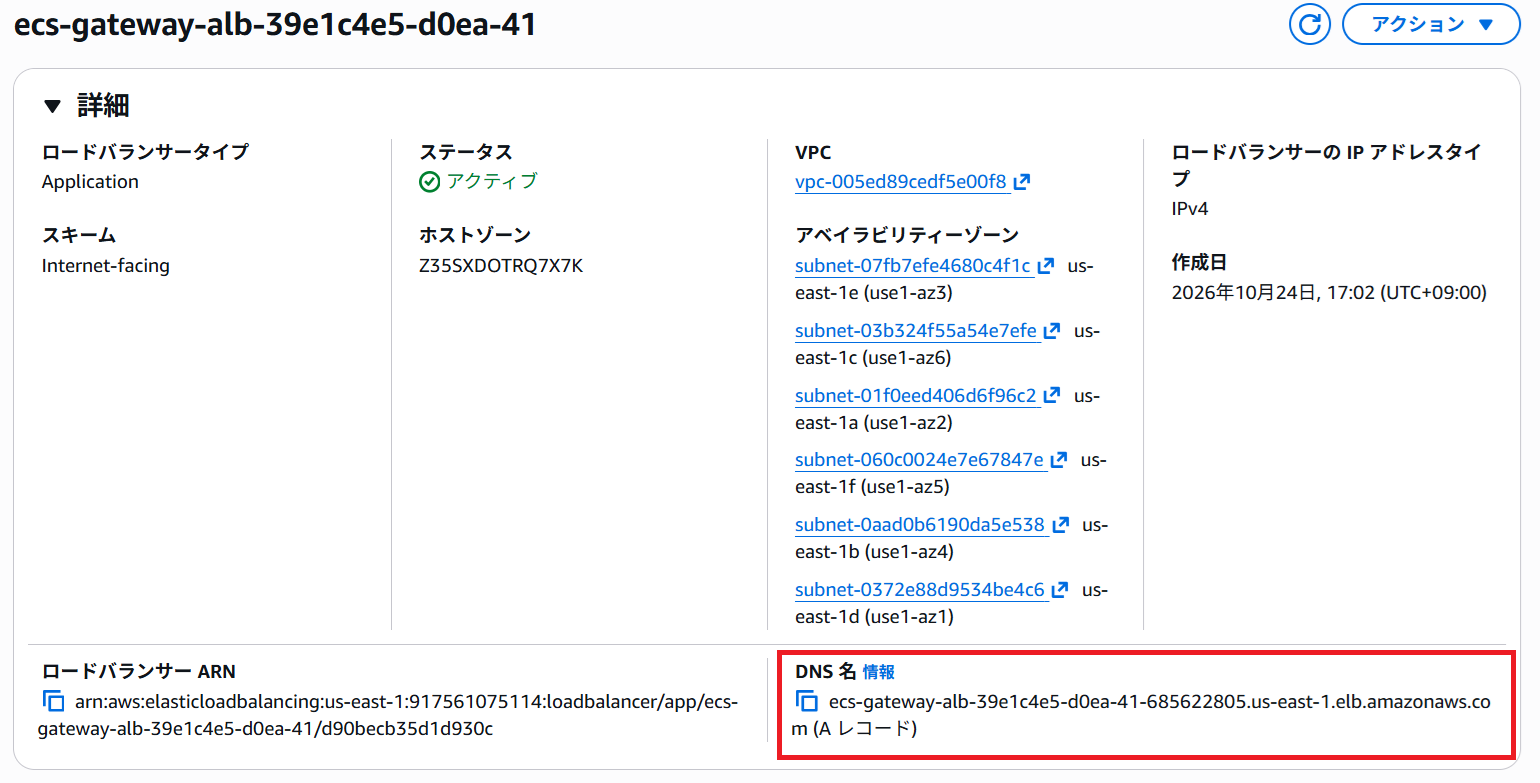
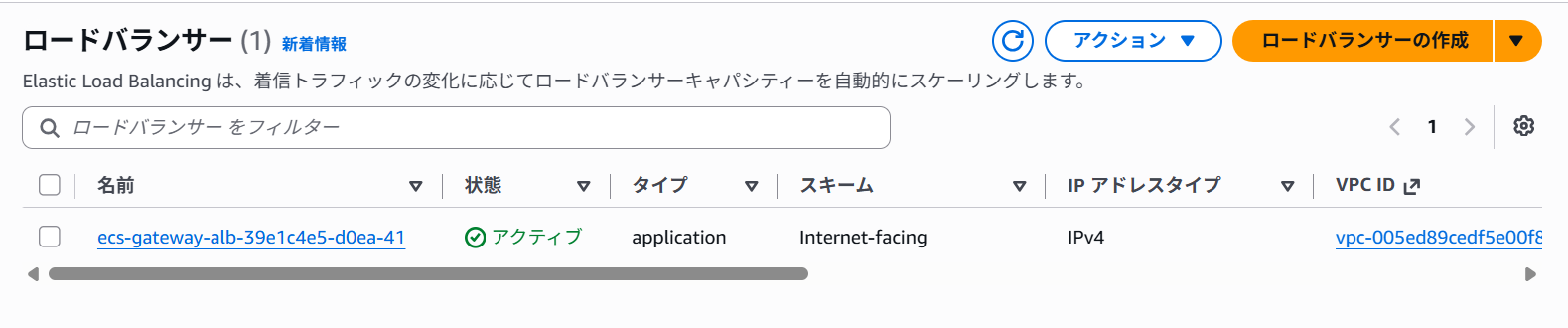
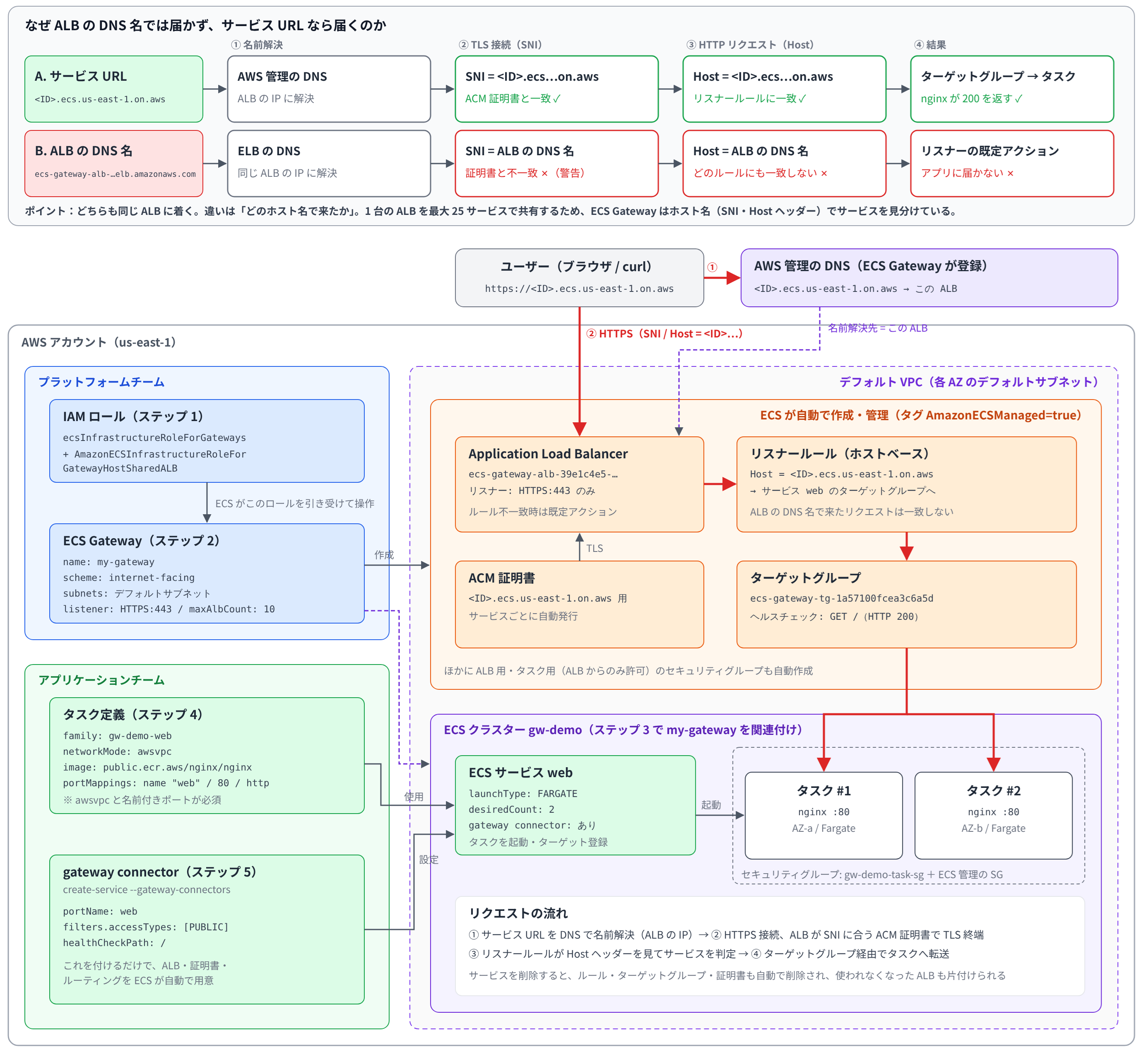
ただしALBのDNSにアクセスをしてもサイトは表示されません。ゲートウェイのDNS名は別に存在しています。
調べたところ以下のような関係性となっていました。